
This command allows you to customise the SuperWEB2 login page for SAML authentication by creating and configuring “login groups”.
Overview
By default, when you set up SAML authentication, SuperWEB2 simply displays an additional button for each active SAML module on the login page.
For more advanced control over how the SAML login options are displayed to users, you can configure “login groups”: effectively these are dedicated individual login pages, which can show any combination of login options that you need.
You can also use this configuration to specify if a login option should be triggered automatically when the page is loaded (such as automatically redirecting to a specific SAML identity provider).
Any changes you make using the command will be reflected in the SuperWEB2 login page immediately.
Usage
|
|
|---|
|
Display the current group configuration |
|
|
|---|
|
Create a new login group. Replace <group_name> with an ID of your choice. You can add as many groups as you need. For example: By default, SuperWEB2 will display the groups in a drop-down list using the configured group names from SuperADMIN, but you can change the display names (and localise them for different languages) by adding a |
|
|
|---|
|
Display the details of a group’s configuration. |
|
|
|---|
|
Delete the specified group and its contents. |
|
|
|---|
|
Add a service to the specified group. Replace
You can add multiple services to a single group. For example: When you add multiple services to a group, the order that you add them to the The final argument is optional; if you set it to |
|
|
|---|
|
Display details of the specified service within the specified group. |
|
|
|---|
|
Remove the service from the specified group. |
|
|
|---|
|
Set whether or not SuperWEB2 should automatically redirect to the service when loading this group. |
Additional Settings
The following additional settings can be used to hide the link to the group selector and to override the delay before an automatic login. These settings are configured using the cfg command.
Hide Group Selector
To hide the group selector, use the following command:
cfg global loginConfig.hideGroups set true
When the group selector is hidden, users will only be able to change groups if they know the specific URL (including the group parameter) for a particular group. This is intended for situations where you may have a standard login form for most users, but want to have separate SAML logins for particular user groups who access them via pre-shared URLs.
To revert to the standard behaviour, either change the value of hideGroups to false or remove the property:
cfg global loginConfig.hideGroups set false
cfg global loginConfig.hideGroups remove
Configure Automatic Login Delay
By default, when you configure a SAML service to use automatic login, there is a delay of 3,000 ms before the login redirect takes place. This gives the user an opportunity to click Cancel if they want to use an alternative login method:
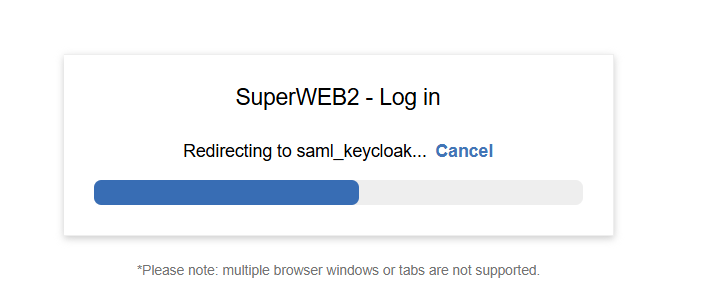
To change the duration of the delay, use the following command (where <ms> is the delay in milliseconds):
cfg global loginConfig.delayMs set <ms>
For example, the following changes from the default 3 second delay to 10 seconds:
cfg global loginConfig.delayMs set 10000
To revert to the default, use the following command to remove the property:
cfg global loginConfig.delayMs remove