
This section describes the options available in the Define Recode window. It is intended as a reference.
If you are new to recodes, see the introduction to recodes in SuperCROSS, which contains a full guide to creating recodes with worked examples.
Define Recode Window
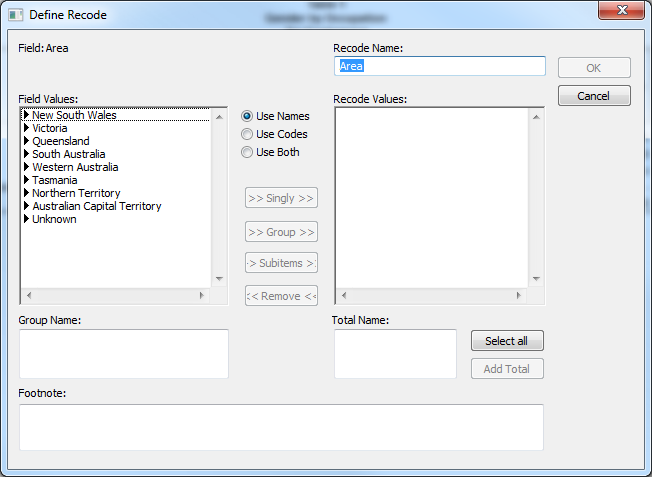
Use the Define Recode window to create and modify recodes:
|
Element |
Description |
|---|---|
|
Recode Name |
The name of the recode.
|
|
Field Values |
The list of available values for this field. If you have a large list of values, right-click and select Find to search for a value. |
|
Recode Values |
The list of values currently include in the recode. Only values that appear in this list will display in the table. |
|
Use these options to specify whether to display values using their names, codes, or a combination of both. Changing this setting will not change any values already added to the Recode Values list. You can therefore use this option to include a combination of names, codes and combinations of both in your recode if necessary. |
|
>> Singly >> |
Click to add the selected Field Values to the recode as individual items. |
|
>> Group >> |
Click to add the selected Field Values to the recode as a group. Make sure you set the Group Name first before adding the group. |
|
>> Subitems >> |
For hierarchical fields, click to add |
|
<< Remove << |
Click to remove the selected Recode Values from the recode. |
|
Group Name |
When adding a group to the recode, set this to the group name and then click >> Group >> |
|
Total Name |
When creating a total for the recode, select the values you want to include in the total, set this to the total name, and then click Add Total. |
|
Select all |
Click to select all the Recode Values. You can use this when creating totals and when you need to remove all the values from the recode. |
|
Add Total |
Click to add a total to the recode based on the selected Recode Values. |
|
Footnote |
Enter text here to display as a footnote whenever the recode is used in a table. |
Define Recode Window - Summation Options
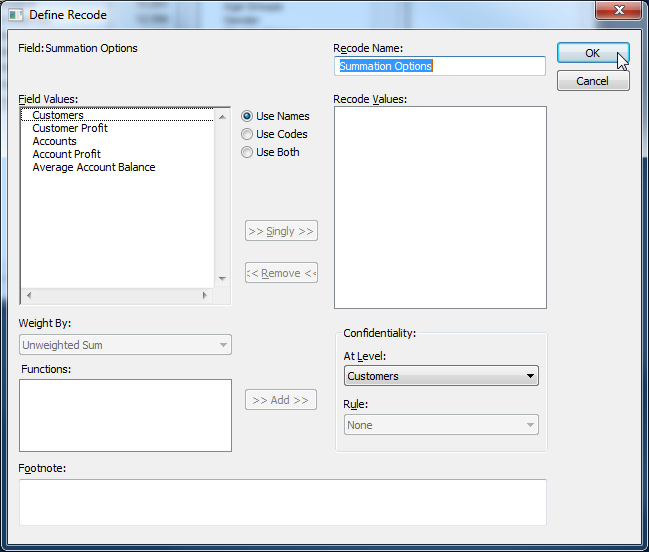
When you are recoding the summation options, the Define Recode window has some additional options that only apply to summation options:
|
Element |
Description |
||||||||||||||||||||||||||||||||||||||
|---|---|---|---|---|---|---|---|---|---|---|---|---|---|---|---|---|---|---|---|---|---|---|---|---|---|---|---|---|---|---|---|---|---|---|---|---|---|---|---|
|
Weight By |
The Weight By drop-down list becomes available when you are using a weighted database. The exact options available will depend on the weighting configuration. Select one of the following:
|
||||||||||||||||||||||||||||||||||||||
|
Functions |
If Unweighted Sum is selected, you can select from the following functions. Click >> Add >> to add the function to the currently selected value in the Recode Values list.
If Replicate Weights or Main Weight is selected, additional functions will be available to select. The exact functions available will depend on how weighting has been configured. |
||||||||||||||||||||||||||||||||||||||
|
Confidentiality - At Level |
The fact table to use when determining whether to apply the concealment rule. This setting only applies to concealment rules, not to rounding rules. This setting applies only to concealment rules, not to rounding rules. It is used when the rule is based on the number of contributors to a cell value: SuperCROSS needs to know which fact table to use when counting the number of contributors. You can also set the level to Default, which means that each measure is summed at its own level. For example, for a database containing two tables, Person and Household:
|
||||||||||||||||||||||||||||||||||||||
|
Confidentiality - Rule |
A rounding rule (confidentiality or concealment rule) for the selected measure in the Recode Values list. The following rounding rules are available by default without any configuration. There may also be a number of concealment rules available for selection, if these have been defined in a confid.ini file for this database:
Confidentiality rules may also be configured at the server level, using the Data Control confidentiality plugin. See Confidentiality Rule for more information. |
Save and Reload Recodes
You can save and reload recodes. See save and load recodes for more information.
Delete a Recode
To delete the recode:
-
Go to the Fields window.
-
Select the recoded field (recoded fields appear in bold).
-
Click Delete.