
There are three ways you can save your tables for future use:
-
Save the table for your own future use, which allows you to easily reload that table again when you log back in to SuperWEB2. This option is only available to logged in users; it is not available to guest users. Typically these tables will be private to your user account only, although your administrator may have configured the ability for you to save tables to a shared folder that is accessible to specific other users.
-
(From 9.18.1 onwards): Create a shareable link to the table. Shareable table links can be loaded by anyone with the link (provided they have access to the dataset and fields in the table). Shareable links can be created by all users, including guests.
-
(From 9.20 onwards): Whenever the browser address bar contains a
tableparameter in the URL, you can copy or bookmark that address to return the current table in future.
Share a Table
Click the Share Table icon to create a shareable link to the current table:
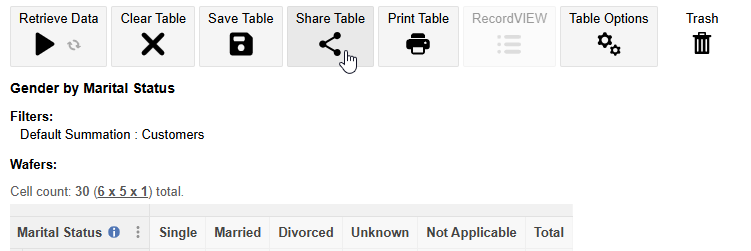
If you do not see the Share Table icon, then your administrator has disabled the feature.
The link displays. Click Copy Link to save the URL to the clipboard.
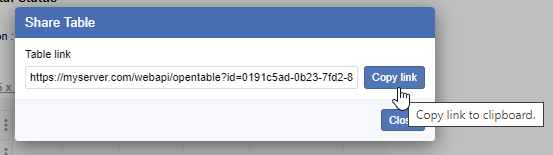
You can now paste the link into any other application, such as email.
Anyone who clicks the link will be taken directly to the table in SuperWEB2:
-
If the user is already logged in to SuperWEB2 when clicking the link, the table will open using their current session.
-
If the user is not logged in, it will either open in guest mode (if enabled and provided that the dataset and fields are accessible to guest users) or SuperWEB2 will redirect to the login form so that the user can log in with an account that has access to this dataset and fields; once logged in, the user will be redirected to the table.
In addition, when you click Share Table, the URL in the address bar changes to include a table parameter that identifies the current table. You can alternatively bookmark or copy and share the URL in the address bar to return to the current table.
Open the Table in Graph View or Map View
You can add an optional parameter to your table link to make it automatically open in Graph View or Map View (if the table has mappable fields, and mapping is configured on the server) rather than Table View. Simply add one of the following parameters to the end of the link that is generated by SuperWEB2:
-
&view=chartor&view=graph -
&view=map
For example:
-
https://myserver.com/webapi/opentable?id=01989734-9716-741f-8b91-b8b3d05579f3&view=chart
The &view parameter works for all forms of direct URL that open a table, except when bookmarking the URL from the address bar (as described in the next section). The address bar links already contain the page name (either tableView.xhtml, chartView.xhtml or mapView.xhtml) in the URL, so do not need an additional parameter to direct the link to the correct view.
Bookmark the Current Table
When you either click the Share Table button, or load a saved table, the URL in your browser's address bar changes to include a table parameter with the current table's ID. For example:

This address also acts as a direct link back to the current table, so you can save it as a bookmark in your browser, or copy and share it with other users.
When sharing the link with another user:
-
If you have just clicked the Share Table button, then the link will work for any user (including guest users) as long as they have access to the current dataset and fields.
-
If you have opened a saved table, then the link will only work for users who have access to that specific saved table (for example if you opened a private table the link will only work for your user account).
If you make any changes to the table, then the table parameter is automatically removed from the address bar (as it is no longer the same table). You can click Share Table again to get a new bookmarkable link with a new table parameter.
You can also bookmark or share the URL from the address bar in Graph View and Map View when it includes the table parameter. For example:


Save Tables
Click the Save Table icon to save the current table. You will see a drop-down menu containing the options to Save or Save As:
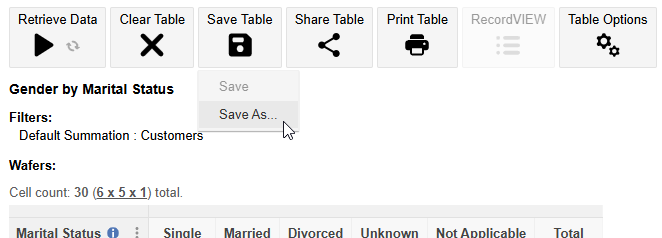
The Save option will only be available if the current table was loaded from a previously saved table, and you have permission to overwrite that table (for example because it is one of your private saved tables). This means that you can open one of your existing tables, make changes, and then choose Save to update that table.
You will not be able to use the Save option if you do not have permission to overwrite the current table (for example if it is a system table created by the administrator). Save is also greyed out if the table was created from scratch.
If you select Save As, you will be prompted to select the save location and enter a name for the table. Choose your name and location and click Save:
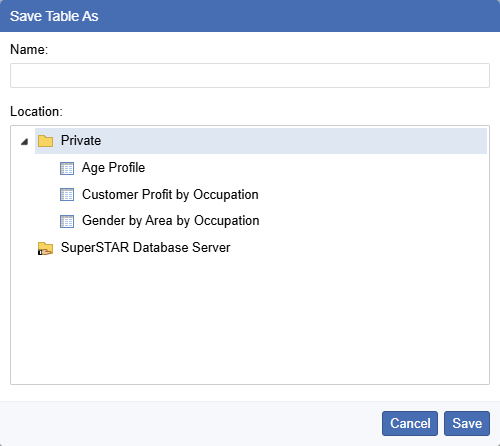
Depending on how your system administrator has configured SuperWEB2, you may have a choice of locations:
-
Choose the Private folder to save a table that is accessible to you only (this option is always available to logged in users).
-
Choose any of the shared folders (indicated by the shared folder symbol,

) to save a table that will be accessible to other SuperWEB2 users. You will only be able to save to a shared folder if your administrator has given you permissions to save to that folder. The folder permissions will also determine which other SuperWEB2 users will be able to access the folder. Check with your administrator to confirm how permissions have been set up in your SuperWEB2 deployment.
You can also select an existing table to overwrite it. You will only be able to do this if you have the appropriate permissions. For example, you can overwrite any of the tables in your own Private folder, but you will only be able to replace tables in a shared folder if you have write permissions for that folder. The Save button will be greyed out if you select an existing table and you do not have permission to overwrite it.
The name of the table must be less than 255 characters long. When you save tables to the Private folder, they must have a unique name; tables saved to a shared folder can have the same name as an existing saved shared table, although this is not generally recommended to avoid user confusion.
Your administrator may have configured a limit on the maximum number of private saved tables you can have at any one time. If you have exceeded this limit you will not be able to save any more private tables until you go to Manage Tables and delete some of your existing saved private tables.
Please note that this limit does not apply to shared tables.
Load Tables
You can reload saved tables one of three ways: from Table View, from Manage Tables and from Datasets.
Table View
You can access saved tables direct from Table View. Click the Tables tab:
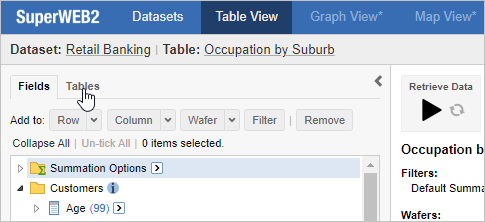
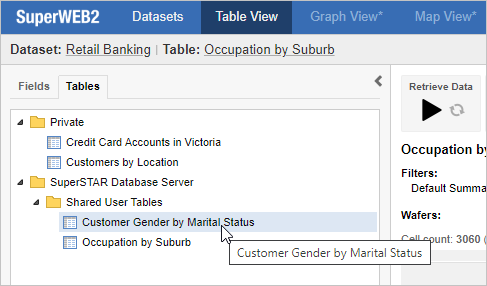
SuperWEB2 displays a list of all the saved tables you have access to for this dataset. Double-click a table to open it, or click once to select and click Open Table.
Manage Tables
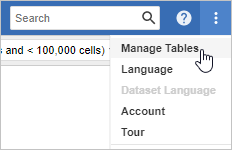
Select the Manage Tables option from the menu in the top right of SuperWEB2:
-
Select Manage Tables.
-
Select the table you want to reopen.
-
Click Open.
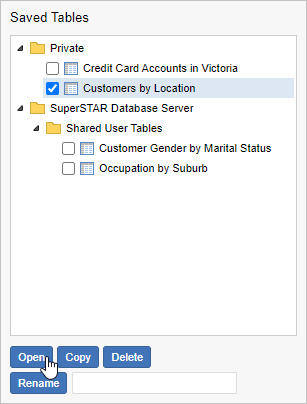
If you currently have a table open, then SuperWEB2 displays a message warning you that any unsaved table content will be lost (this means that the selected table will replace the currently active table). Click OK.
-
-
Your saved table displays.
Datasets
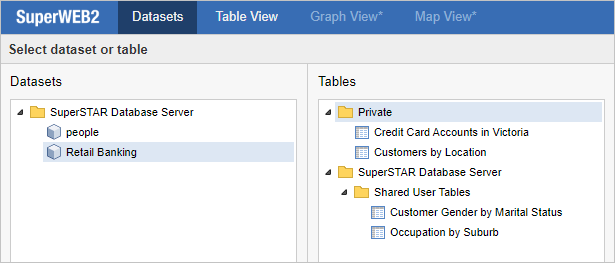
You can also access saved tables from the Datasets tab. This is displayed when you log in to SuperWEB2, or whenever you click the Datasets link in the top left corner:

To open your saved table, click the dataset it was created from, then go to the Tables list and double-click the table name. For example:
Manage Saved Tables
Manage Tables also allows you to rename saved tables, create new copies of saved tables, and delete saved tables:
Rename and Copy are only available for private saved tables.
Rename a Saved Table
This option is available for private saved tables only:
-
Select the check box next to the table you want to rename.
-
Enter a new name in the text box.
-
Click Rename.
Copy a Saved Table
This option is available for private saved tables only:
-
Select the check box next to the table you want to copy.
-
Click Copy.
Delete a Saved Table
-
Select the check box next to the table or tables you want to delete.
-
Click Delete.
-
Click OK to confirm you want to delete the table or tables. Make sure you check that you are deleting the correct table or tables, as there is no way to undo the deletion.
Your administrator may have configured a limit on the number of saved tables you can have at any one time. You should delete any unused tables so you have enough space to continue saving your customised tables.
Change the Table Sort Order
Depending on how your administrator has configured SuperWEB2, you may be able to change the order that tables are listed in the Saved Tables tab.
To check and change this setting:
-
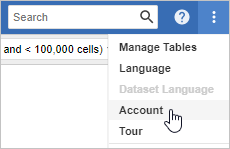
Click the menu button in the top-right corner and select Account:
-
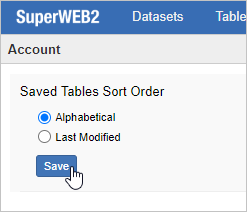
Choose between Alphabetical (tables will be displayed in ascending alphabetical order) or Last Modified (the most recently modified/created tables will appear at the top of the list).
-
Click Save.
If you do not see this option, then this means that your administrator has turned off the ability to set this preference. Your saved tables will be displayed in the order set by your administrator (by default, this is alphabetical order).
Large Table Downloads
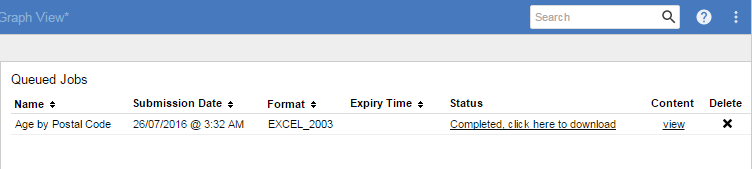
If your system has been configured to use the Job Queue Manager feature, then the Manage Tables tab may also show details of large tables that you have queued for download. You can use the options to check the status of large table queries, download any tables that have completed processing, and manually delete the tables:
See Large Tables for more information about using SuperWEB2 in large table mode.