To add a new user interface language to SuperWEB2, you need to create a resource bundle. This is a set of properties files saved in <tomcat_home>\webapps\webapi\WEB-INF\classes.
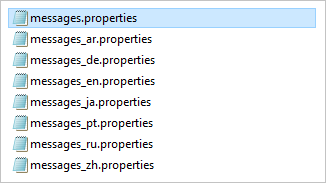
For example, the file messages.properties contains values for various strings displayed in SuperWEB2. By default there are several versions of this file with the language code in the filename. These are used for the different languages that are supported out of the box:
This page describes the process for adding a user interface language only. This will not change the language used in the datasets. If you want your datasets to be available in multiple languages then you will need to set up Metadata Server.
Step 1 - Create Your Translations
You can use the base versions of the properties files as a template for creating a version for your new language. For example:
-
Open messages.properties in a text editor.
-
Save it as messages_<locale>.properties
Replace <locale> with the relevant 2 character lower case ISO 639 language code (see http://en.wikipedia.org/wiki/List_of_ISO_639-1_codes for a list of codes).
For example, to add support for French you would save it as messages_fr.properties.
If necessary, you can further specialise your properties files to support regional language variations (such as US and Australian English). See Customise the User Interface Language Based on Country for more details).
-
Each line in the file contains a property and a value. For example, the following lines define some of the text displayed on the login screen:
page.login.window.title=Log in page.login.form.heading=SuperWEB2 - Log in -
Change the values for each entry in the file to the appropriate translated text (but do not change the names of the properties themselves).
For example:
page.login.window.title=Ouverture de session
page.login.form.heading=SuperWEB2 - Ouverture de session
If your translations contain any non-ASCII characters, you must convert the encoding of these characters to 8-bit printable form. You can do this when you have finished adding all the translations to the file, using a tool supplied with the Java Development Kit. See the section below for further details.
Repeat these steps until you have translated all of the properties files. The following is a list of the main properties files that you need to localise:
|
Filename |
Contains... |
|---|---|
|
CDataOnlineEditRules.properties |
Error messages that are displayed when the user attempts to create a table that breaches the configured table rules. |
|
common_labels.properties |
Common labels used through the application. |
|
database_labels.properties |
Dataset-specific messages. |
|
messages.properties |
General on screen labels used throughout the application. |
|
basemaps.properties |
The text for the Aerial Map and Street Map drop-down labels shown in Map View. |
|
configuration.properties |
Settings such as the location of the PDF download template and online help can be localised. |
In addition to the above properties files, which are also located in <tomcat_home>\webapps\webapi\WEB-INF\classes, there are also some text strings used in Map View that you may wish to translate. These are configured in <tomcat_home>\webapps\webapi\mapping\arcgis-jsmap\str\amp\nls\Sw2EntryPoint_<locale>.js.
Step 2 - Update the Languages in faces-config.xml
When you have finished adding translated versions of all the required properties files, you need to add your new language to the list of supported locales in the faces-config.xml configuration file. See Change the Supported User Interface Languages for more details.
You will need to restart Tomcat or the SuperWEB2 service after making the change to faces-config.xml.
Step 3 - Check the File Encoding
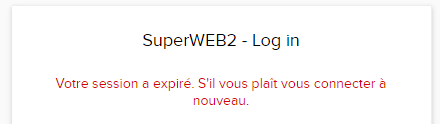
If your translated text contains any non-ASCII characters (such as characters with accents and characters from non Roman alphabets), then you must ensure your .properties files are encoded in UTF-8 format, otherwise those characters will not display properly in SuperWEB2. For example:
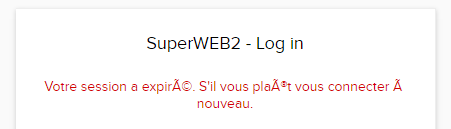
Once the file has been encoded properly, those characters will be rendered correctly in SuperWEB2. For example: