
This section explains how to create an ODBC data source that allows Metadata Server to connect to a metadata database stored in SQL Server.
-
Go to the Windows Control Panel and select System and Security > Administrative Tools > Data Sources (ODBC).
The ODBC Data Source Administrator window displays.
-
Select the System DSN tab.
It is important to create a system data source, rather than a user data source, as this will allow you to run the Metadata Server as a Windows Service.
-
Click Add.
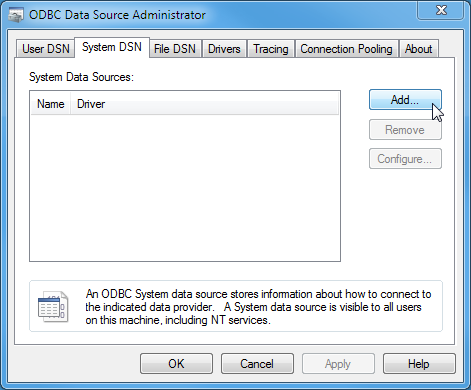
The Create New Data Source window displays.
-
Follow the steps below that apply to your RDBMS.
SQL Server
-
Select SQL Server and click Finish.
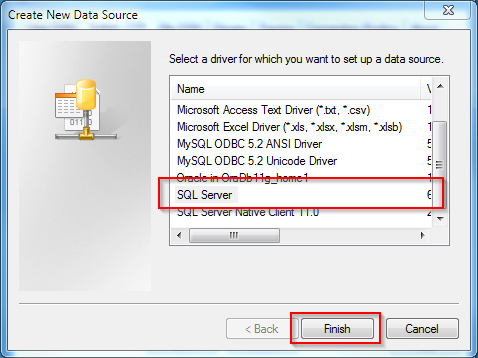
The Create a New Data Source to SQL Server window displays.
-
Give your new data source a Name and Description.
Make a note of the name as you will need this to configure Metadata Server.
-
From the Server drop-down list, select your SQL Server instance and click Next.
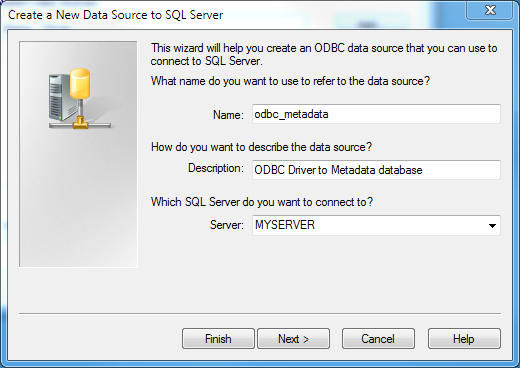
You are prompted to enter the login details.
-
Enter the login details for your SQL Server and click Next.
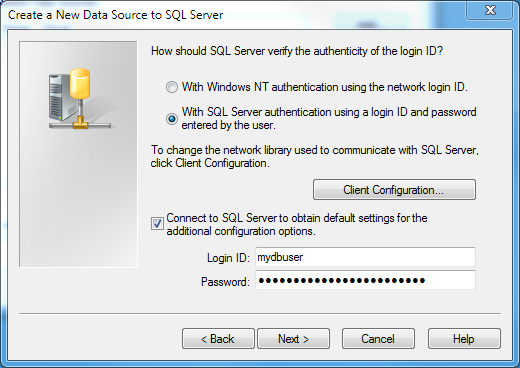
You are prompted to select the default database.
-
Select your metadata database from the drop-down list at the top, then click Next (leave the rest of the settings on this screen unchanged).
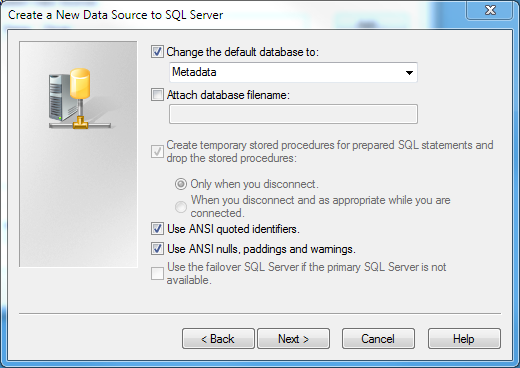
-
Leave the values on the next screen unchanged and click Finish.
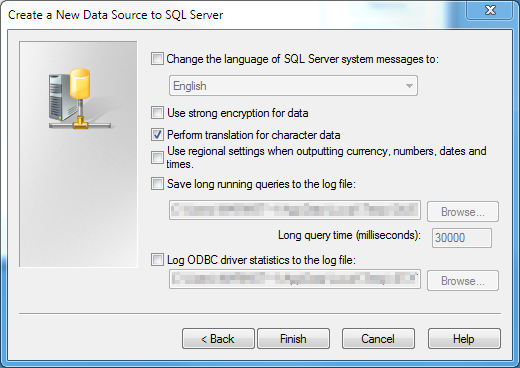
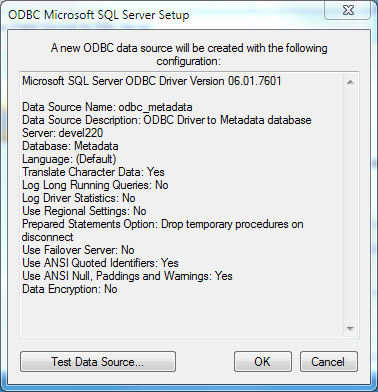
A summary screen displays.
-
Use the Test Data Source button to verify the settings are correct (make sure that the result is TESTS COMPLETED SUCCESSFULLY).
-
When you are happy with the settings, click OK to close the ODBC Microsoft SQL Server Setup window and create the data source.
-
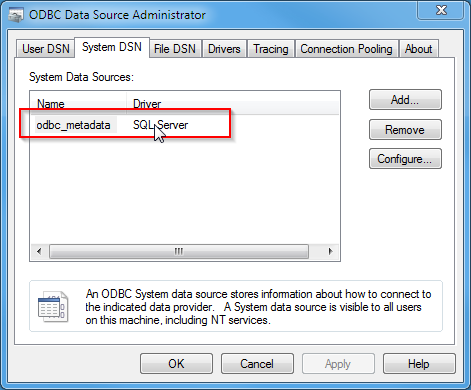
Verify that your new data source appears in the list:
Oracle
-
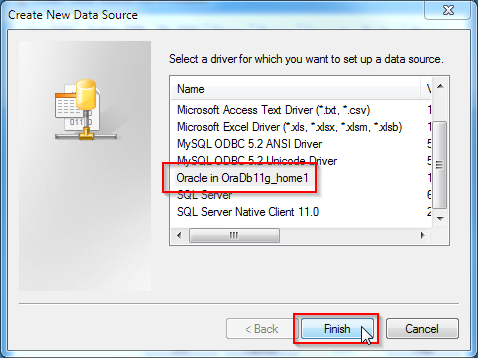
Select Oracle and click Finish.
-
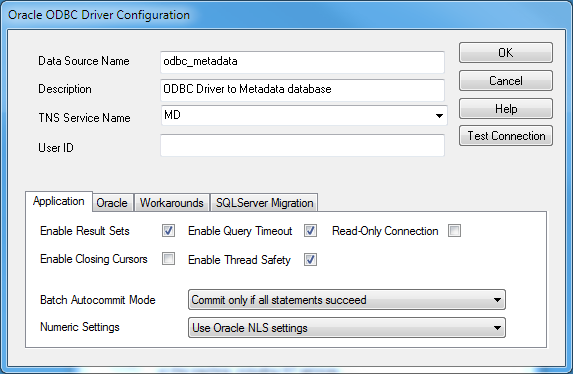
Give your data source a Name and Description. Make a note of the name as you will need this to configure the Metadata Server.
-
Enter the service name and the details of the user you want to use to connect to the Oracle database.
-
Click Test Connection to verify the credentials.
-
Once you have verified that the credentials are correct, click OK to create and save your data source.
MySQL
-
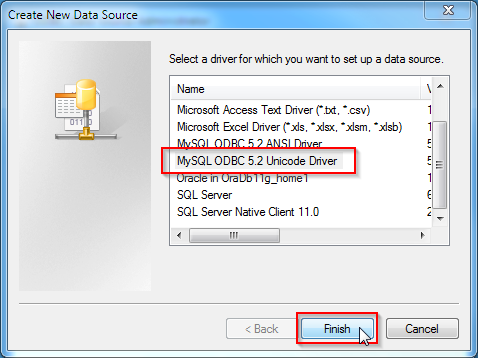
Select the MySQL Unicode Driver and click Finish.
-
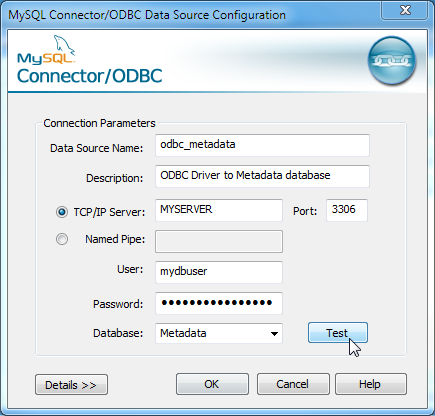
Give your data source a Name and Description. Make a note of the name as you will need this to configure the Metadata Server.
-
Enter the server details, the login credentials, and select the database from the drop-down list.
-
Click Test to verify the credentials.
-
Once you have verified that the credentials are correct, click OK to create and save your data source.