
Once you have created a table, you can download the data in various formats:
-
Excel 2007
-
Excel 2003
-
Comma Separated Value (CSV)
-
CSV string value
-
CSV string value, data only
-
SDMX Structure Definition
-
SDMX Archive
-
Open Data API Query (for use with the Open Data API)
-
Textual Table Definition (.txd)
Depending on how the system administrator has configured your system, you may not have access to all of these download formats.
Apart from TXD, the download formats cannot be reloaded back into SuperWEB2. If you want to save a table in a format that you can reuse in SuperWEB2, see the section on saving and reloading tables.
To download your table data:
-
Select the format from the Download Table drop-down list:
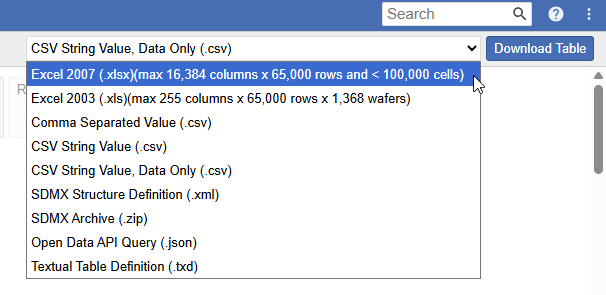
Some of the download formats have restrictions and may not be always be available. See below for more details. -
Click Download Table.
Depending on your browser, the file will either be saved to your default downloads folder, or you may be prompted to choose whether you want to Save or Open the file. For example:

Download Format Restrictions
Some of the download formats may not always be available. This will depend on the type of table you have created, as well as the settings configured by your administrator:
|
Excel |
Excel 2003 and Excel 2007 have limitations on the size of a table they can display. To prevent data outside of the row/column limit being lost, you will not be able to download in Excel format if your table exceeds these limits. |
|---|---|
|
CSV |
CSV downloads are not available if the table contains axis derivations. The CSV String Value, Data Only format is only available if the administrator has enabled that option by changing the |
|
SDMX |
SDMX downloads are not available if the table contains any of the following:
|
|
TXD |
Only available if the system administrator has given you access to this download type. Administrators can control access to TXD downloads by changing the |
Percentages in Downloaded Tables
When downloading tables containing percentages, the percentage symbol is only displayed in Excel format downloads. Other formats, such as CSV, will include the percentage value but will not show the percent symbol (%) after the value.
Wafers in Downloaded Tables
When downloading tables containing wafers to Excel, each wafer layer is assigned its own worksheet. Wafer-layer labels are applied to their corresponding worksheets according to this set of naming conventions.
Relative Standard Error in Downloaded Tables
Where Relative Standard Error (RSE) data is available, this data will be saved in the downloaded table as follows:
|
Download Format |
Location of the RSE Data |
|---|---|
|
CSV and CSV String |
Downloads will include a separate column for RSE data. |
|
Excel |
Downloads will include RSE data in a separate Excel worksheet. |
|
SDMX |
RSE will be represented as an attribute value in the SDMX Generic Data observation element. This attribute is only added when the dataset is weighted and has RSE values in the associated data cube. For example: |
If RSE data is available then it will be downloaded even if it is not currently displayed in the table in Table View.
Annotations in Downloaded Tables
If the table contains annotations, they will be saved as follows:
|
Download Format |
Location of Annotations |
|---|---|
|
CSV and CSV String |
Downloads will include:
The CSV String, Data Only format does not include any annotations. |
|
Excel |
Downloads will include:
|
|
SDMX |
SDMX downloaded at the data set level will contain dataset level annotation descriptions and symbols in the |
Languages in Downloaded Tables
If your SuperWEB2 system has been set up for multiple languages, then the language used in the download will depend on what language(s) you have currently selected in SuperWEB2:
-
If the current dataset has been configured to support multiple languages, then the download will use the language currently selected from the Dataset Language menu.
-
If the current dataset is only in a single language, then the fields from the dataset itself will be shown in the dataset's language, but any additional text included in the download will be in the currently selected user interface language.