
This section describes the options available in the right-click menu when working with tables.
The menu options are slightly different depending on whether you right-click on the table header, the row/column/wafer axes, the table data area, or the footnote/table footer area.
Table Header/Footer Right-Click Menu
|
Option |
Select To... |
|---|---|
|
Font |
Select a different font for the table header/footer. |
|
Alignment |
Change the horizontal alignment of the text in the table header/footer. You can choose from Left, Centre and Right. You can also select the Use As Default option to save the setting for the next time you create a table. |
|
Assign Annotations |
Manage annotations. See Annotations 2 for more information. |
|
Filter Annotation Footnotes |
Filter the annotations so that only annotations relating to items currently in the table display in the footnote. If this option is not selected then all the annotations display in the footnote regardless of whether the items they refer to are currently part of the table. |
|
Meta-Information |
Create or view table metadata. See Metadata and Multilingual Tables for more information. |
Column/Row/Wafer Right-Click Menu
|
Option |
Select To... |
||||||||||||||||||||||||
|---|---|---|---|---|---|---|---|---|---|---|---|---|---|---|---|---|---|---|---|---|---|---|---|---|---|
|
Drill |
Navigate down or up through the hierarchy (only available for hierarchical fields). See Navigate Hierarchies (Drill Down, Drill Up) for more information. |
||||||||||||||||||||||||
|
Meta-Information |
Create or view metadata for the field or value. See Metadata and Multilingual Tables for more information. |
||||||||||||||||||||||||
|
Derivations |
Manage derivations. See Derivations 1 for more information.
|
||||||||||||||||||||||||
|
Sort |
Sort the row, column or wafer based on the data values. See Sort Tables for more information. |
||||||||||||||||||||||||
|
Sort Label |
Sort the row, column or wafer based on the field labels. See Sort Tables for more information. |
||||||||||||||||||||||||
|
Item Font |
Change the font for the selected item. |
||||||||||||||||||||||||
|
Field Font |
Change the font for the selected field. |
||||||||||||||||||||||||
|
Spanner Label |
Show or hide the field name on the row, column or wafer. By default, for concatenated fields, this displays a single label describing each field, for example: 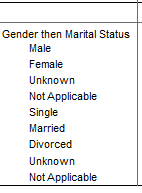
There is an optional configuration setting ( 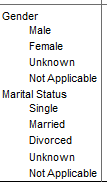
|
||||||||||||||||||||||||
|
Format |
Apply formatting:
Where available, you can use the Extent of Change options to apply the change to:
|
||||||||||||||||||||||||
|
Page Break |
Insert or remove a page break for use when printing the table. By default SuperCROSS will create the page breaks automatically.
|
||||||||||||||||||||||||
|
Assign Annotations |
|
||||||||||||||||||||||||
|
Hide |
Hide axis items or field items.
|
||||||||||||||||||||||||
|
Reveal |
Reveal previously hidden axis or field items.
|
||||||||||||||||||||||||
|
Suppress Intersection |
Activate or deactivate the Suppress Intersection feature on the selected column, wafer or row. If this feature is activated on both the row and column for a given cell (or both row and wafer, or wafer and column), that cell will be replaced with a string like N/A to indicate that the intersection of the row and column is suppressed. Activating Suppress Intersection for a field item in nested fields will result in all instances of the field item being affected. The string used to replace the cell value is controlled by the Suppress Total String setting. You can configure this by changing the setting in Edit > Options > Data. |
||||||||||||||||||||||||
|
Find Value |
Search the row, column or wafer.
|
Table Data Area Right-Click Menu
|
Option |
Select To... |
||||||||||||
|---|---|---|---|---|---|---|---|---|---|---|---|---|---|
|
Data Area Font |
Change the font used in the table data area. You can choose from the following options:
|
||||||||||||
|
Options |
Open the Options window. See Options for more information. |
||||||||||||
|
Fonts |
Change the table font. |
||||||||||||
|
Annotate Cells |
Manage cell annotations. See Annotations 2 for more information. |
||||||||||||
|
Conceal Cells |
Conceal or show the selected cells. See Confidentiality 1 for more information about confidentiality in SuperCROSS.
|
||||||||||||
|
Field Reference Settings |
Bookmark field values. |
||||||||||||
|
Suppress Zeros |
Suppress rows, columns, or wafers that contain only zeros. |
||||||||||||
|
Sort Wafers |
Sort the table wafers based on the values in the selected cell on each wafer. See Sort Tables for more information. |
||||||||||||
|
Edit Cell |
Modify the cell. This option is only available for cells that have been imported or inserted. |
||||||||||||
|
Records |
Activate Record View.
See Record View 1 for more information. |